
Synopsis:
This guide will take you through how to provision a Samsung Tizen-based Kiosk with SignageOS (our MDM for Tizen based devices). There is a continuation of the guide which will be take you through how to put Bite's software onto the kiosk via SignageOS.
Link: https://docs.signageos.io/hc/en-us/articles/4405549783058-Samsung-Tizen-Kiosk-Provisioning
Step 1:
Turning on the hardware. Please ensure that the kiosk is plugged in and connected to power and ethernet. If this is not a new kiosk, please factory reset all settings. To do so, press and hold the bottom left corner of the screen. A pop-up should appear asking for the passcode. For most units the default passcode should work.
Then navigate to Menu -> Support -> Factory Reset
The unit should reboot itself after it is complete.
Step 2:
Once the unit is powered on, please follow the steps on screen:
1) Please enter the correct time for the kiosk
2) Skip the RMS step
3) and "Install from web server"
Step 3:
For installing from web server:
| Install URL | https://2.signageos.io/app/tizen/2.5.3/kiosk/signageoskiosk.zip |
| Update Domain | https://2.signageos.io |
Step 4:
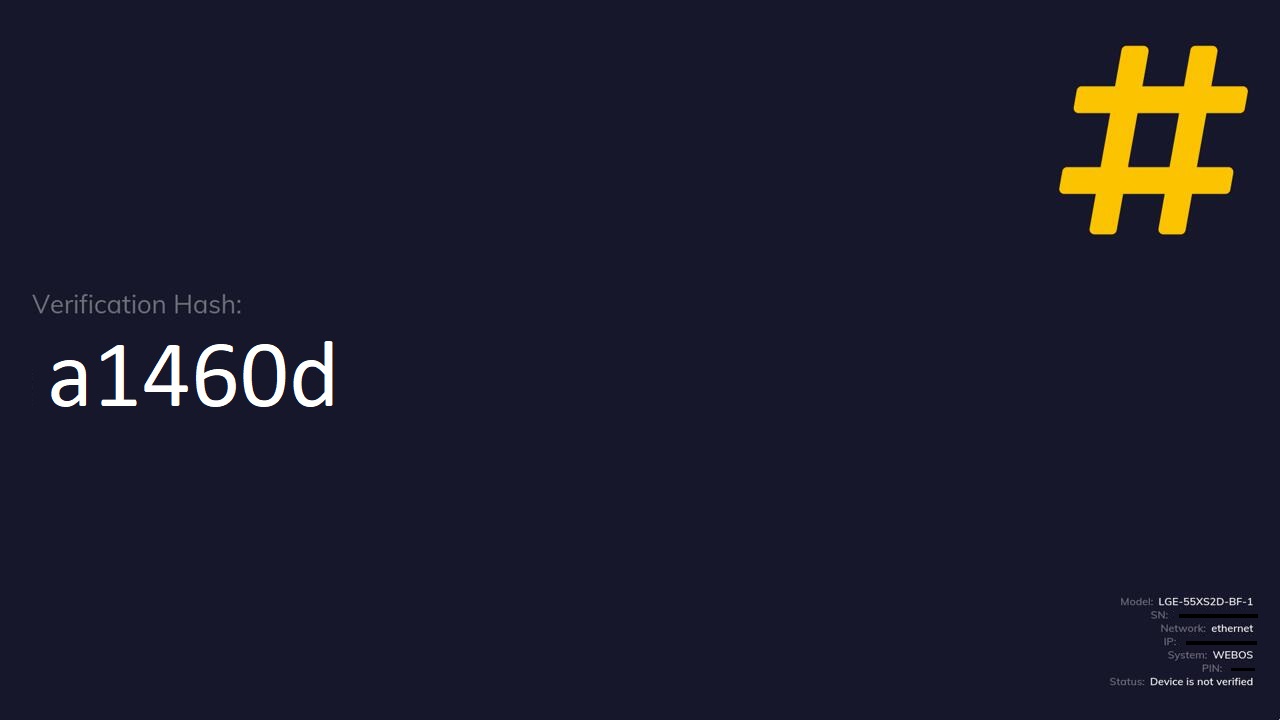
The unit should reboot on its own and once ready it will display a black screen with a hash code. Please provide the verification hash code to Bite's implementation team.
An example of the screen you should see is below:
Comments
0 comments
Please sign in to leave a comment.