
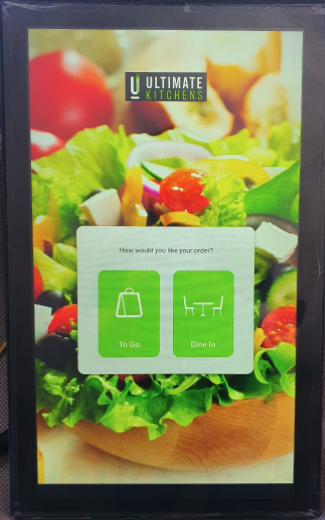
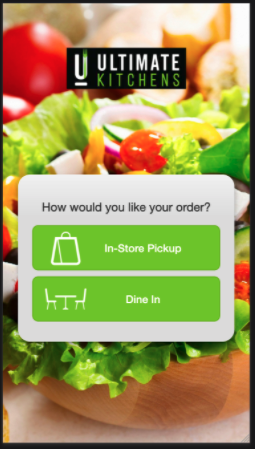
Clients can configure the way dining options are presented at the beginning of the ordering experience. Please see examples of the dining options presentation screen below:
Kiosk:
Mobile for Flash:
Please follow instructions below to configure the dining options presentation screen:
Background Image:
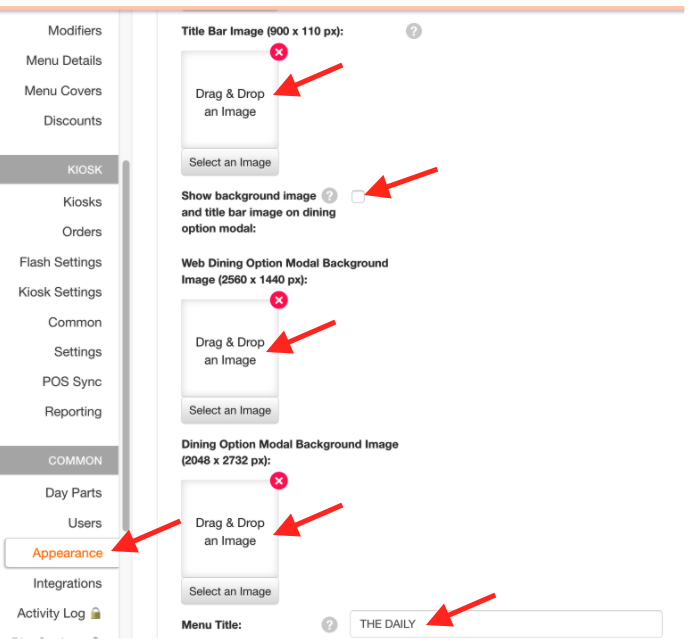
- Navigate to the desired Bite Admin Portal location
- Click on Appearance tab
- Check "Show background image and title bar image on dining option modal:" checkbox (NOTE: if this box is not checked off, the dining option screen will NOT have a background image and just a simple modal overlay will appear on top of the menu in the background.)
- Upload the desired background image for the screen
-
- For KIOSK and FLASH mobile, upload the desired 2048 x 2732 px image in the Dining Option Modal Background Image slot
- For FLASH desktop, upload the desired 2560 x 1440 px image in the Web Dining Option Modal Background Image slot
-
- Click Update
Title Bar Image:
- Navigate to the desired Bite Admin Portal location
- Click on Appearance tab
- Insert desired image in the Title Bar Image slot. Recommended pixels are 900 x 110 px.
- Click Update
Dining Option Buttons:
If you would like to change the color of the dining options buttons, please submit a ticket to support@getbite.com
Comments
0 comments
Please sign in to leave a comment.