
Synopsis:
This help desk article will serve as an overview of various user roles and rights that can be assigned to a role to create a custom role.
Roles
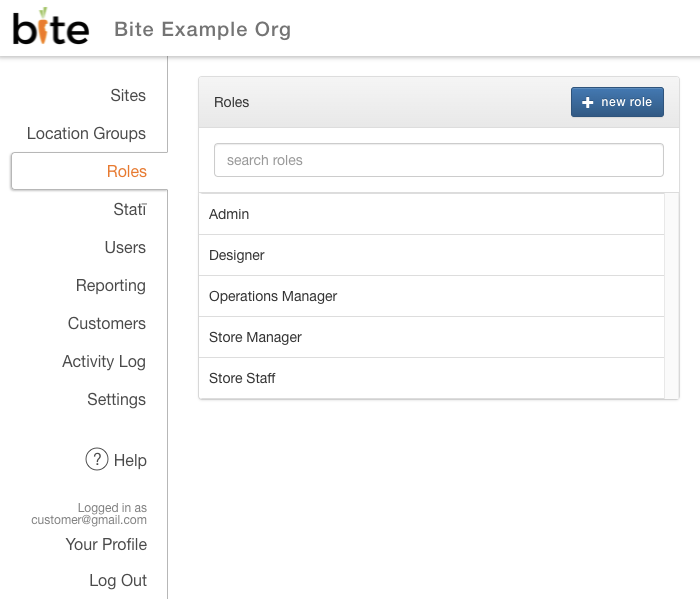
Each user added to the Bite Admin Portal can be assigned single Role in Bite Admin Portal. You can locate all roles available under the Roles tab on Org level in Bite Admin Portal. Instructions for creating custom user roles will be addressed in the later part of this article.
Users
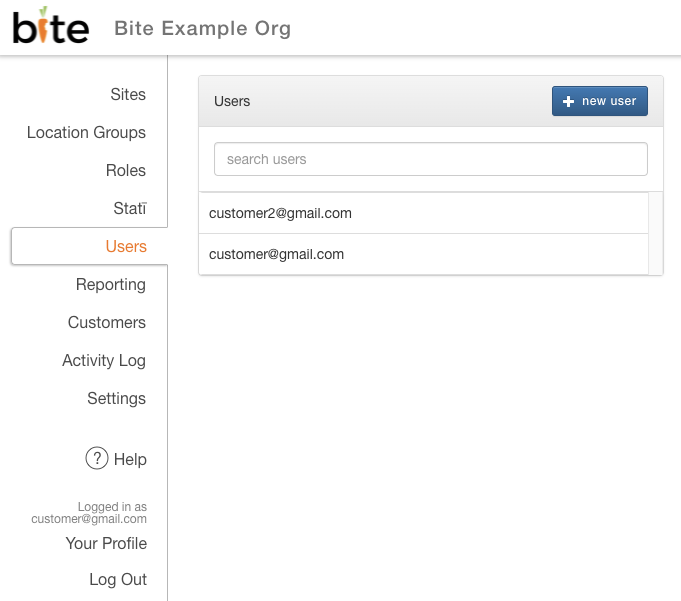
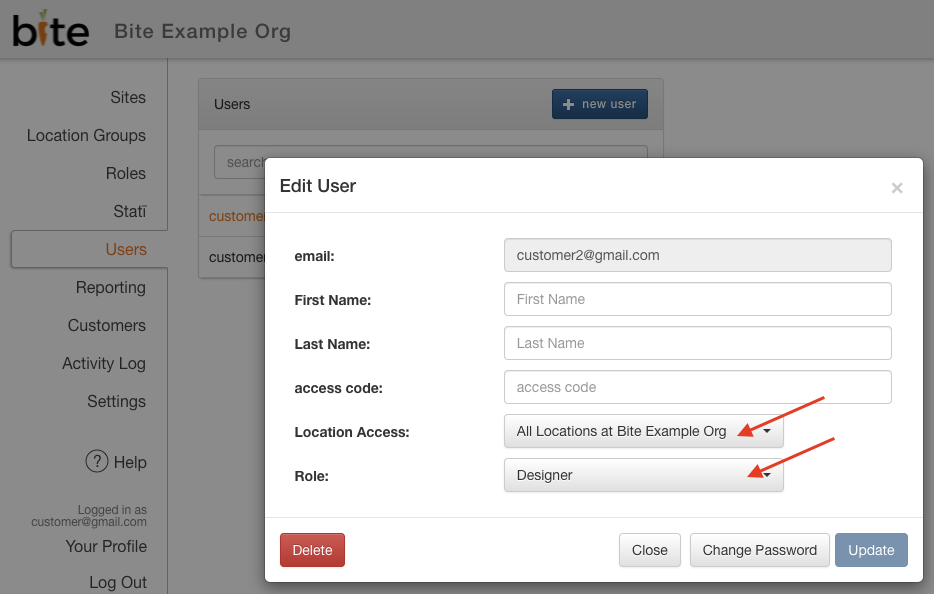
You can locate all users under the Users tab on Org level in Bite Admin Portal. You can view their location access as well as their assigned roles by clicking into each user. If you need assistance in adding a new user to your org or location, please refer to our help desk article HERE or reach out to support@getbite.com
Rights
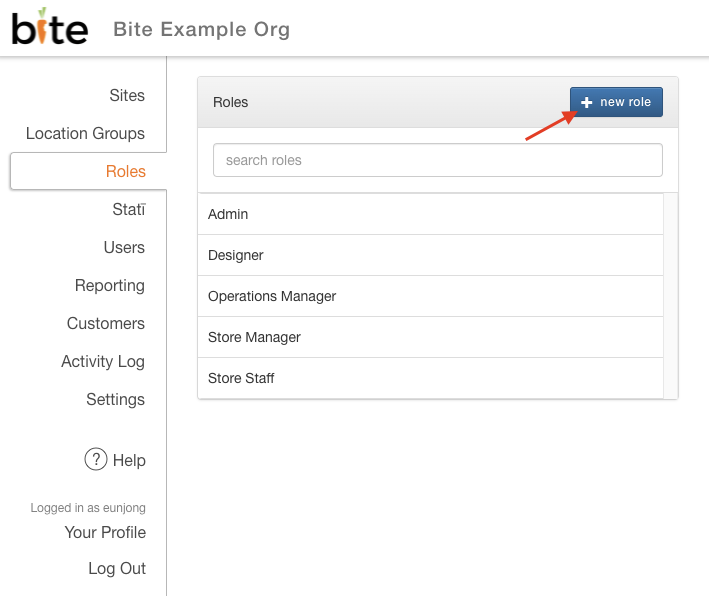
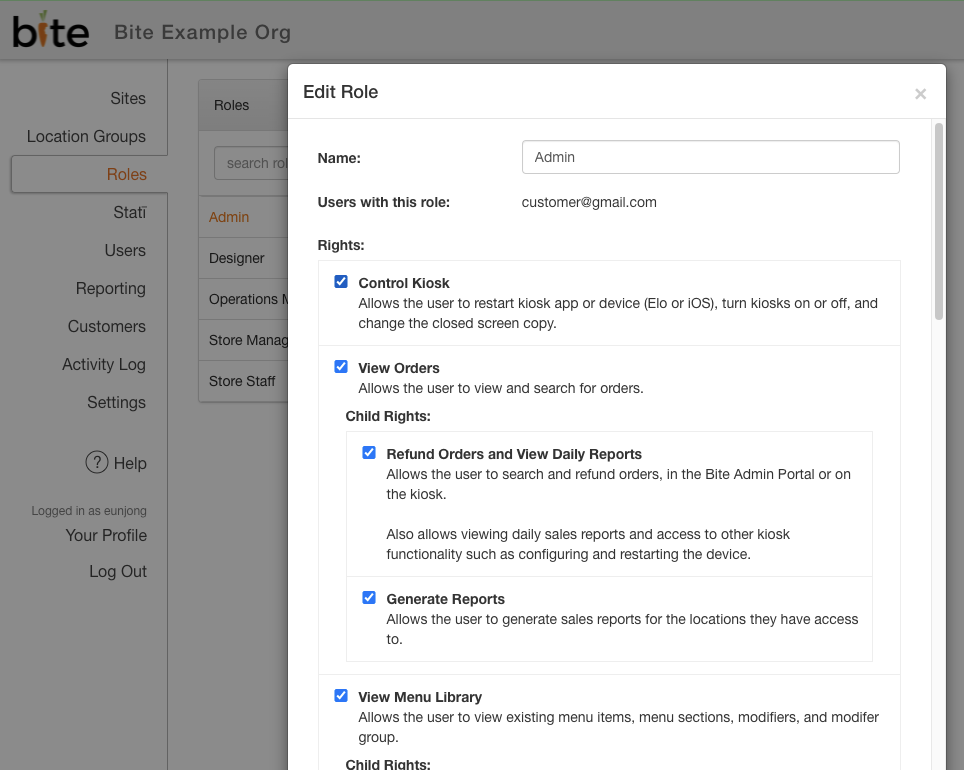
Rights assigned to a Role will determine what level of access a user will have in the Bite Admin Portal. A list of all available rights is viewable by clicking into any role under the Roles tab or by clicking on the "+ new role" button.
Each right is listed with a brief description of what the features it provides access to in the Bite Admin Portal. For example, the Control Kiosk right allows the user to restart kiosk app or kiosk device, turn kiosks on or off, and change the closed screen copy of the kiosks. If you have any specific question around any specific rights listed below, please contact support@getbite.com.
Creating Custom Roles
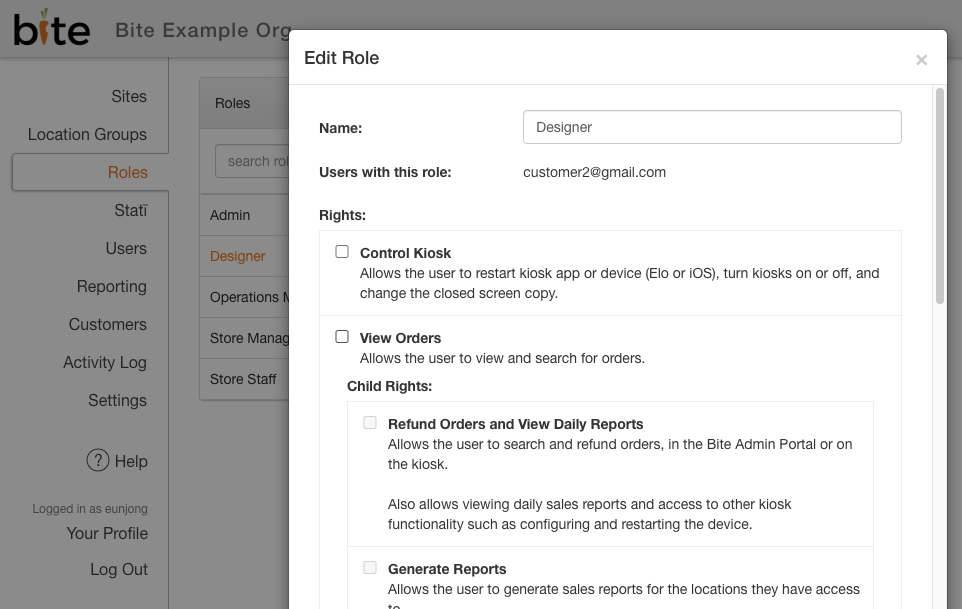
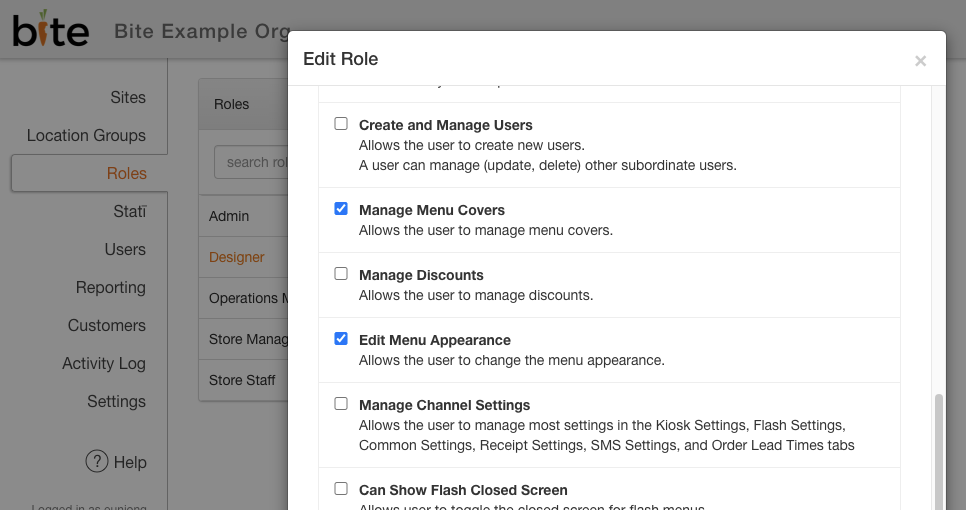
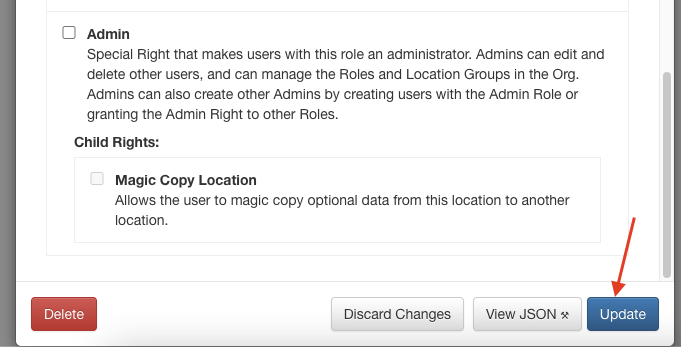
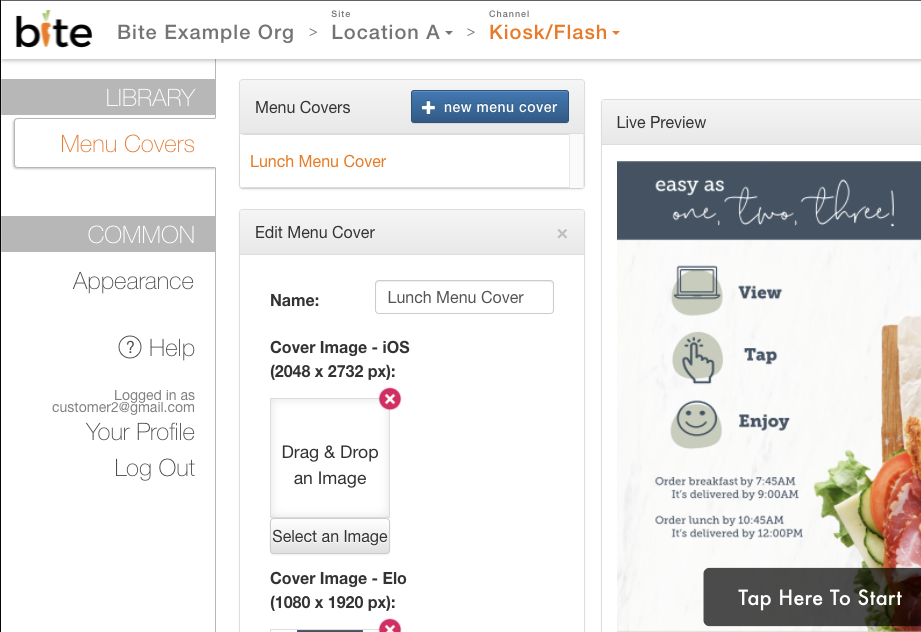
Users can mix and match various rights to create custom roles. For example, a graphic designer may only require access to the Appearances and Menu Covers tab, but should be prevented from viewing the menu or controlling the kiosks. In that case, please click the "+ new user" button under Roles tab, select the Manage Menu Covers and Edit Menu Appearance rights, and click "Update". You can then assign this newly create role to any user available in the Bite Admin Portal.
Comments
0 comments
Article is closed for comments.