
Restaurants can now utilize this nutritional filtering feature on both kiosk and contactless.
All filters can be configured under in the Appearances tab > Badges section in the Bite Admin Portal.
To add a new badge, please click the +new badge button, add in an Icon (50x50 pixels, PNG format), and designate a name.
Each badge can be configured to show up as a filter. Please check the Shows up as a Filter checkbox and select a Filter Category from the drop down below. If you do not check the Shows up as a Filter option, the badges will simply show up on the menu items, but will not show up as an option to be selected under the nutritional preferences/filters view.
There are three categories for filters:
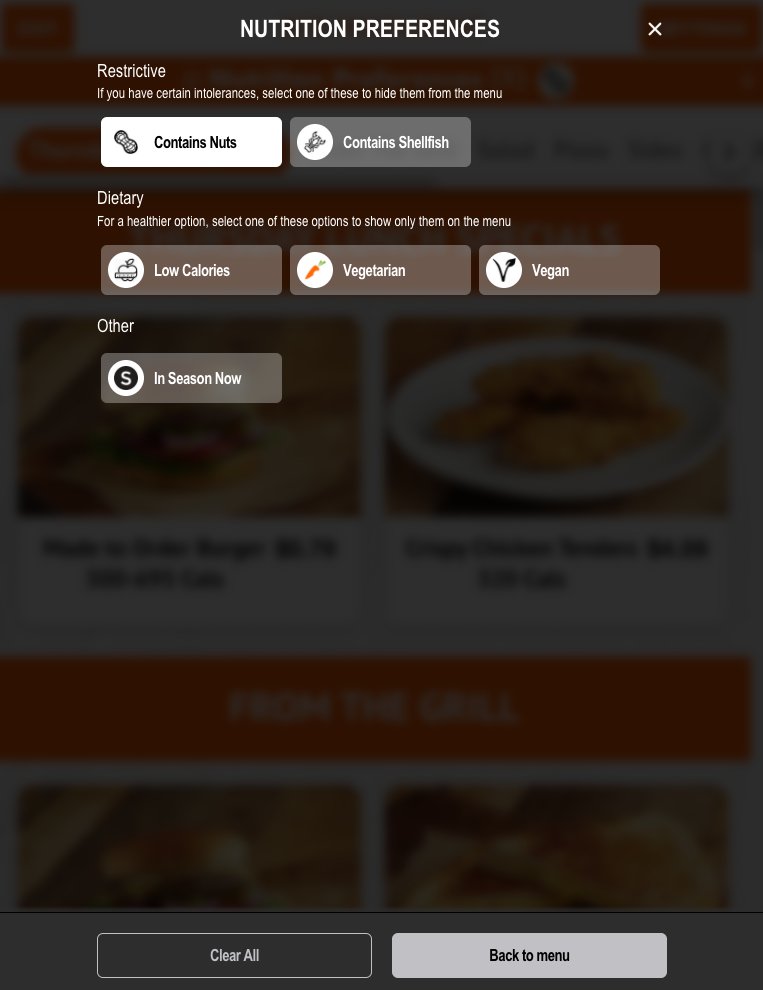
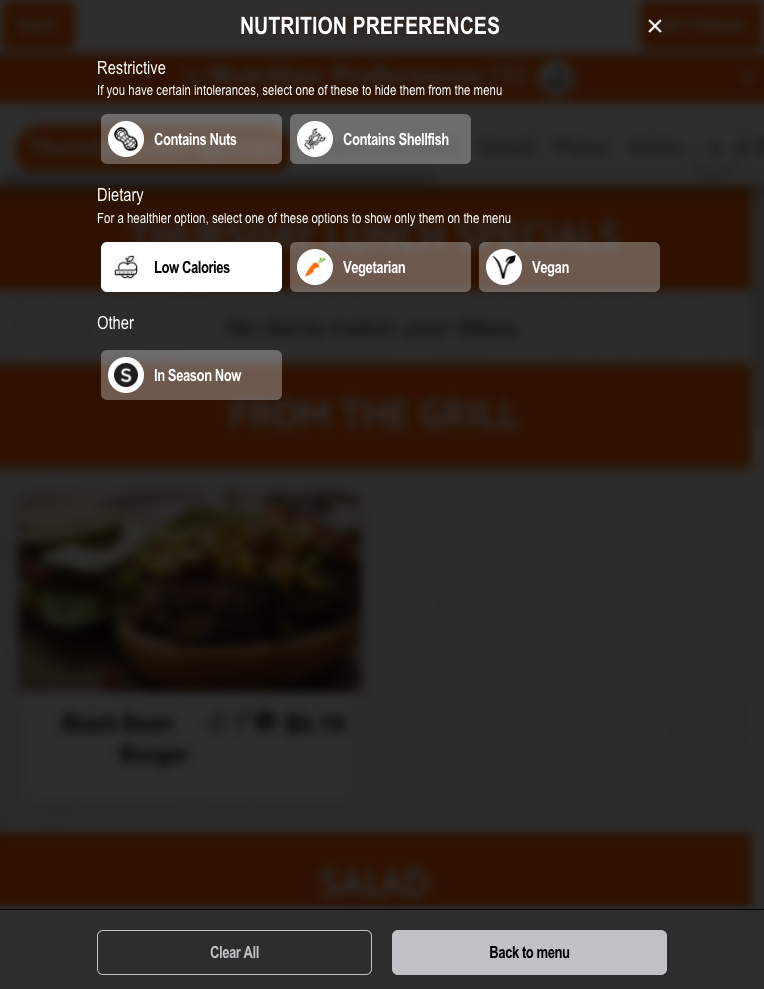
Restrictive: This category of filters should consist of badges that indicate allergens or substances that a guest would avoid. If a guest selects a badge from the Restrictive filter category, the menu will HIDE all items with the badge.
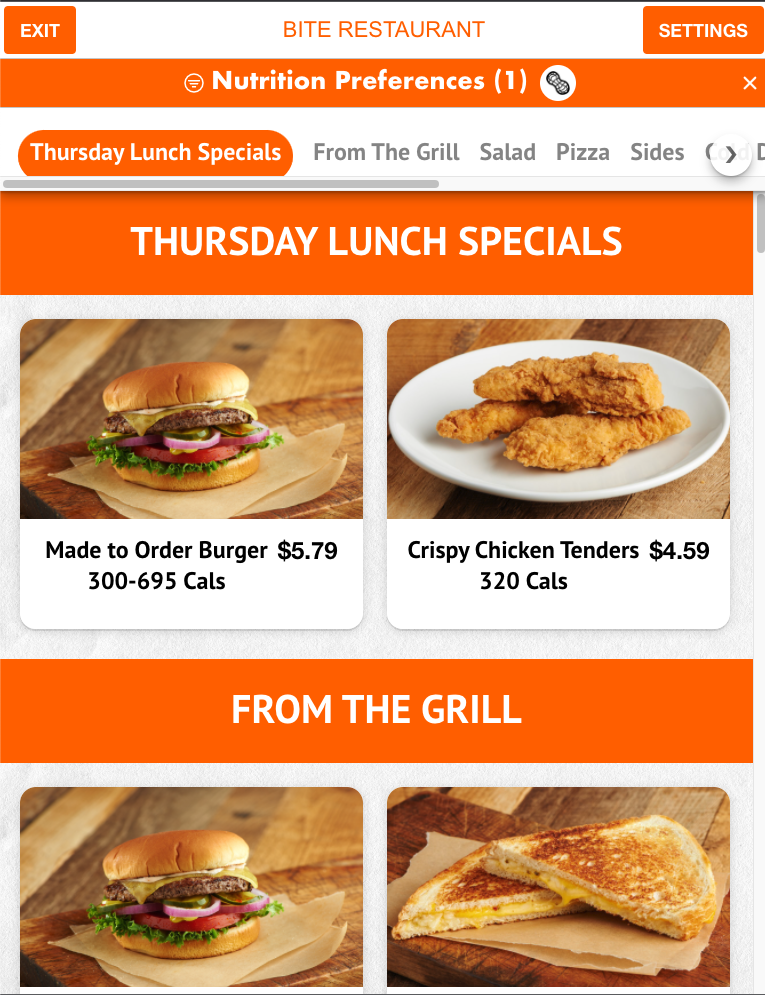
Use case: Contains Nuts badge is assigned to a restrictive filter category. When a guest selects the Contains Nuts option from their filters option, the menu will HIDE all items that has the "Contains Nuts" badge.
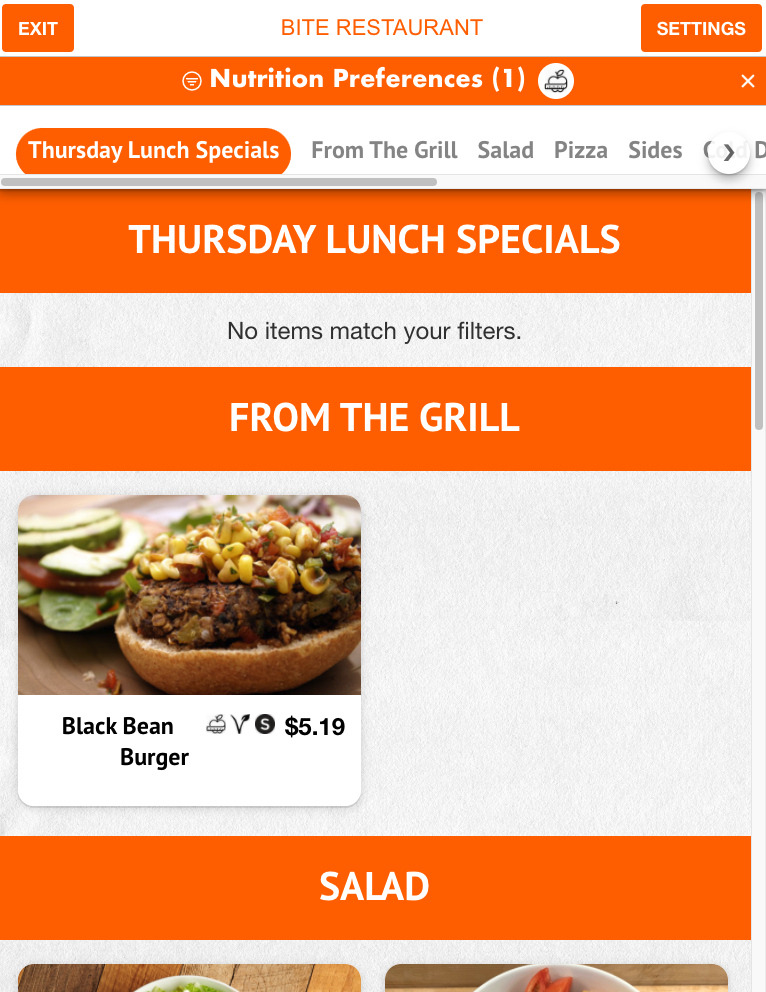
Dietary: This category of filters should consist of badges that indicate a dietary choice, such as vegan, vegetarian, keto, and etc. If a guest selects a badge from the Dietary filter category, the menu will show all items with the badge.
Use case: Vegan badge is assigned to a dietary filter category. When a guest selects the vegan option from their filters option, the menu will show all items with a vegan badge.
Other: This category of filters can be used for any other use cases outside of the Dietary and Restrictive badges, such as Seasonal, Local, and etc. If a guest selects a badge from the Other filter category, the menu will show all items with the badge.
Please note that any text strings around the Nutrition Preferences (Filters) feature can be customized to fit your branding and terminology. Please reach out to our support team at support@getbite.com for any customizations.
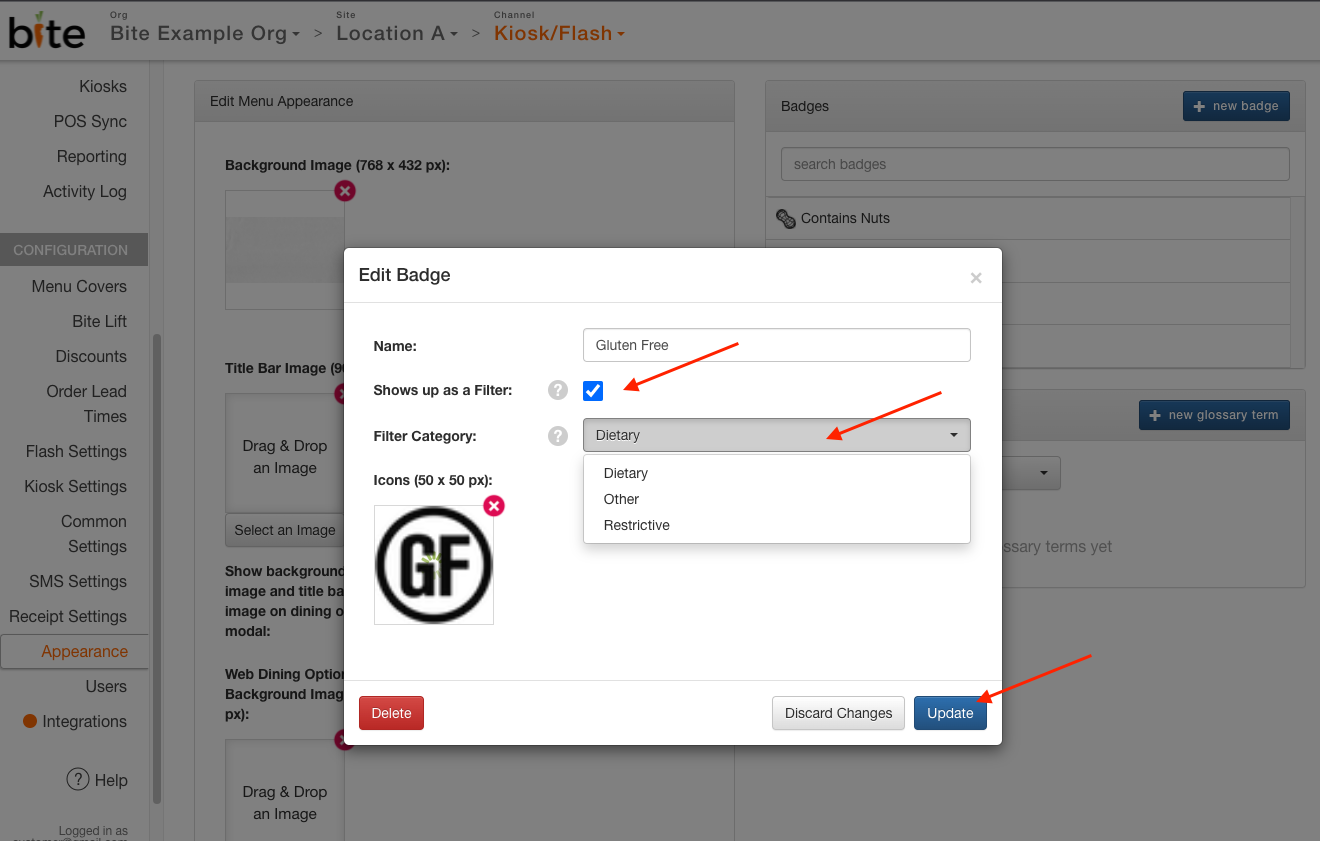
Please see the images below for reference and reach out to support@getbite.com should you require any assistance in setting up the feature.
Nutrition Preferences (Filters
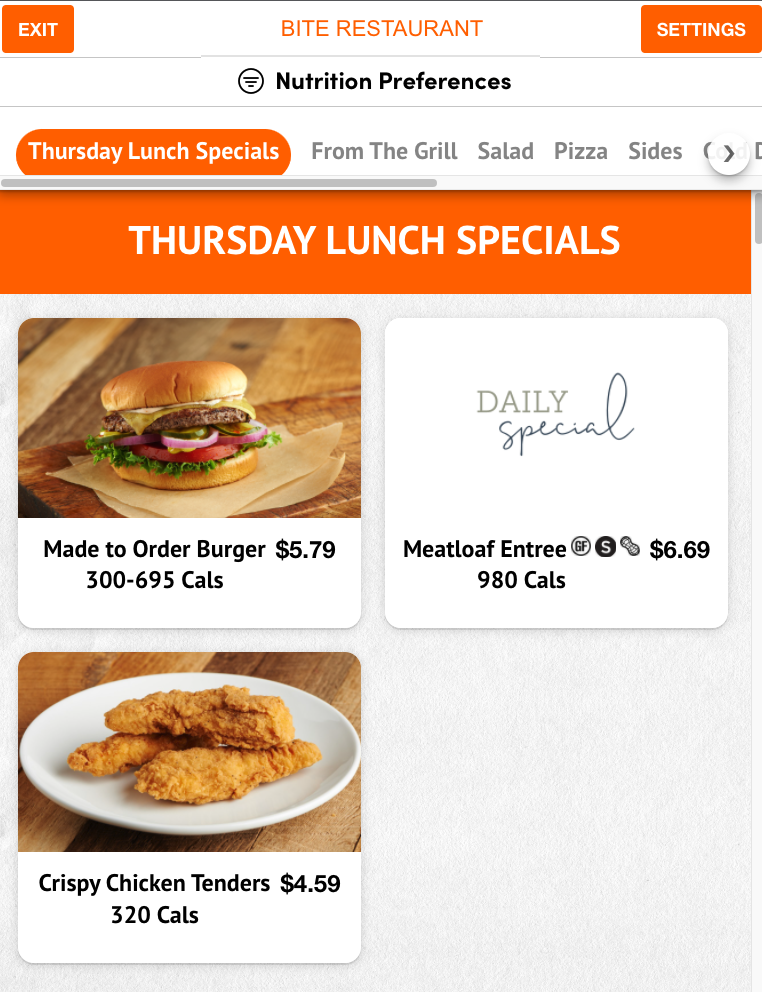
Selecting a "Contains Nuts" (Restrictive) filter hides all items with the badge.
Selecting a "Low Calories" (Dietary) filter shows only items with the badge.
Comments
0 comments
Article is closed for comments.