
Order lead time feature allows operators to notify guests if the order prep time is expected to be longer than the selected pick up time.
Order lead times rules can be set by menu sections. These rules are applied to a single order. Lead thresholds are managed per order. If there are more than one lead time rules set for the location, guests will see lead time alert message with the greatest lead time in the order. Please follow the steps below for setting up the order lead time rules.
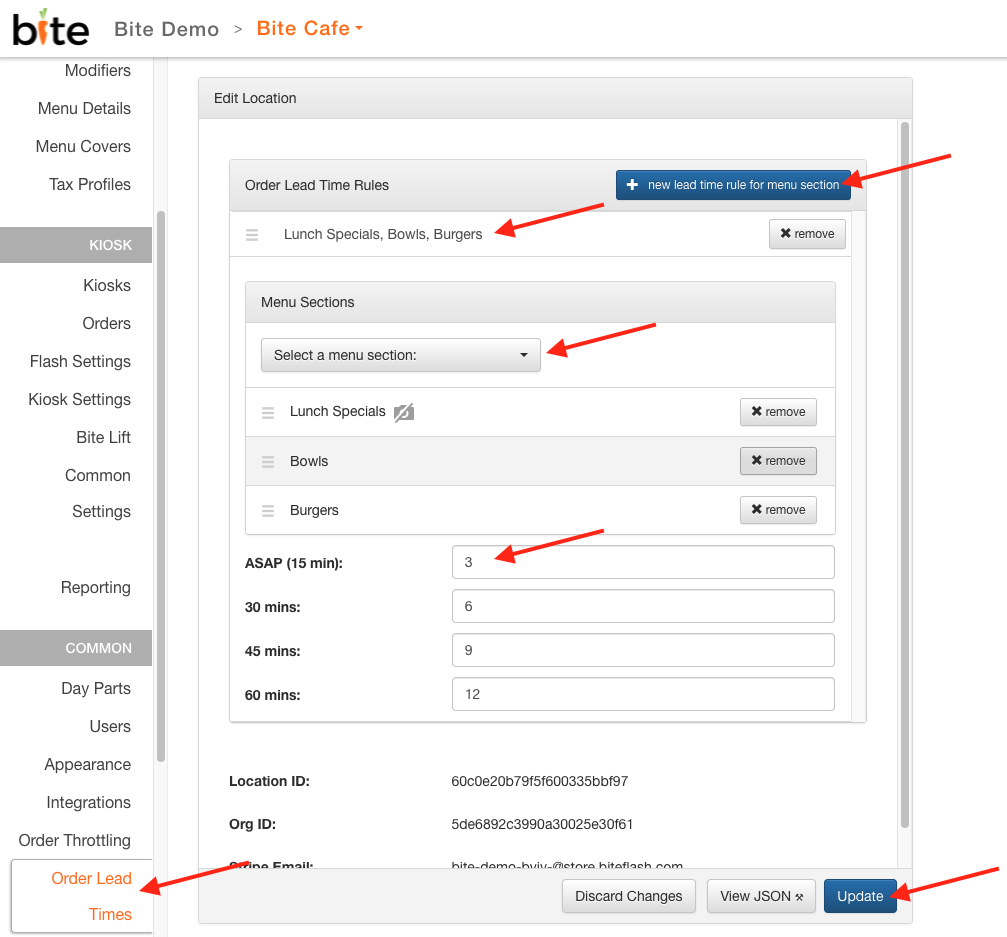
- Navigate to the desired location in Bite Admin Portal
- Click on "Order Lead Times" tab on the left side
- Click " + new lead time rule"
- Select desired menu sections to add a lead time rule
- Enter in desired number of items in each lead time tier (ASAP (15 mins), 30 mins, 45 mins, 60 mins)
- The threshold needs to be exceed for the order lead time to bump to the next lead time tier.
- In the example below, if 1-3 items are ordered from any of the 3 menu sections (Lunch Specials, Bowls, and Burgers), the lead time is 15 minutes. If 4-6 items are ordered from those sections, the lead time is 30 minutes. If 7-9 items are ordered, the lead time is 45 minutes. If 10-12 items are ordered, the lead time is 60 minutes. Any items beyond 13 items will be more than 60 minutes.
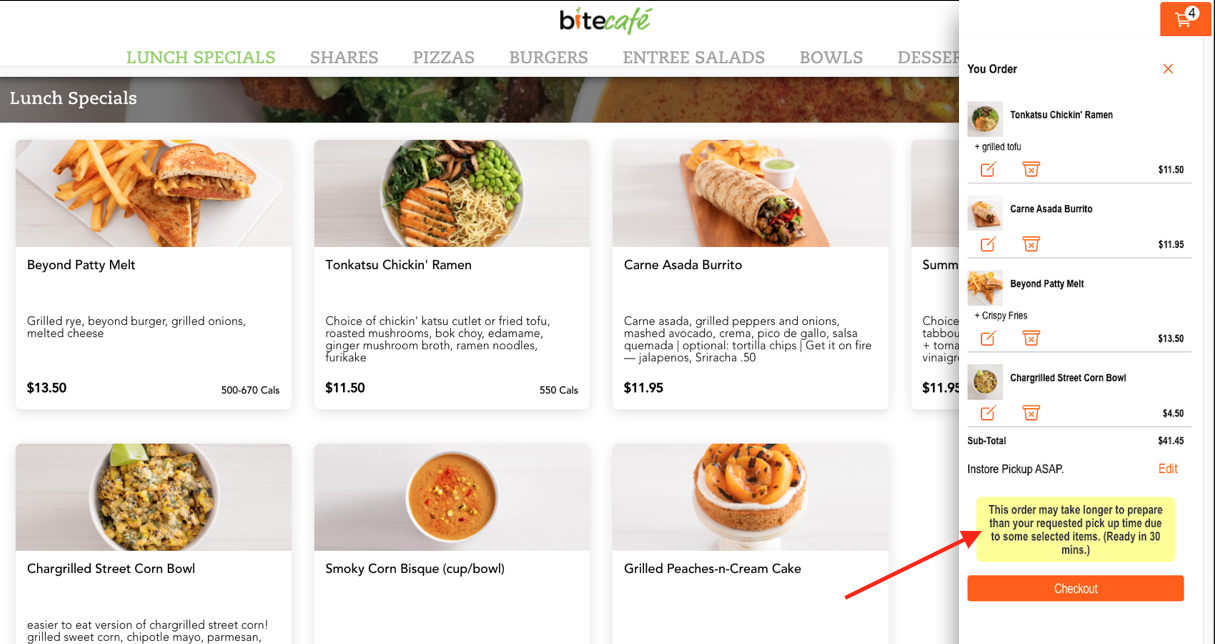
- In the example below, since 4 items are in cart, the lead time alert message will indicate that the order may take up to 30 minutes to prepare.
- Click "Update"
Once order lead time rules have been set in the Bite Admin Portal, the guests will see lead time messages in two places below during the ordering process:
1) In side cart view
2) Order Summary screen prior to checkout
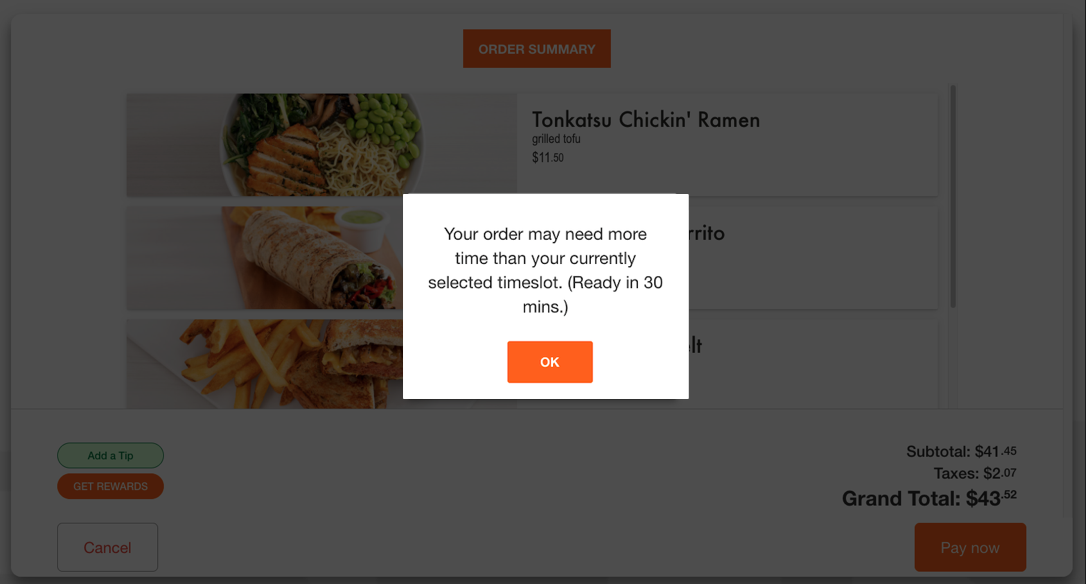
The alert message in the example above ("Your order may need more time than your currently selected timeslot.") is customizable per each location. Please reach out to support@getbite.com should you like to customize this verbiage. (Bite team: looking for LEAD_TIME_LONG custom string for this verbiage)
Comments
0 comments
Please sign in to leave a comment.